Gorgias
Show customers' subscriptions on Gorgias tickets and let agents skip, pause, resume, cancel or send a portal link without leaving the ticket.
The Gorgias integration puts a Subrise Subscriptions panel in the ticket sidebar. Agents see the customer's subscriptions and can change them from the ticket.
Before you start, install Gorgias on your Shopify store and finish your Gorgias account setup.
Connect Gorgias
You can connect from Subrise or from the Gorgias App Store. Both end in the same place.
From Subrise
- Go to Settings > Integrations.
- On the Gorgias card, click Connect.
- In Gorgias domain, enter your Gorgias site name. It is the first part of your Gorgias address: for
your-site.gorgias.com, enteryour-site. - Click Connect. Gorgias opens in a new window.
- Click Allow to authorize Subrise Subscriptions.
- Close the window when it says the connection worked. The card shows Connected.
From the Gorgias App Store
- In Gorgias, open Settings, then App Store.
- Search for Subrise Subscriptions and open it.
- Click Connect. Gorgias opens Subrise in your Shopify admin with your Gorgias domain filled in.
- Click Connect, then Allow in the Gorgias window.
Subrise creates the ticket widget and the customer data connection in Gorgias for you. There is nothing to set up in Gorgias by hand.
What agents see
Open any ticket. The Subrise Subscriptions panel appears in the right sidebar, matched to the ticket's customer by email.
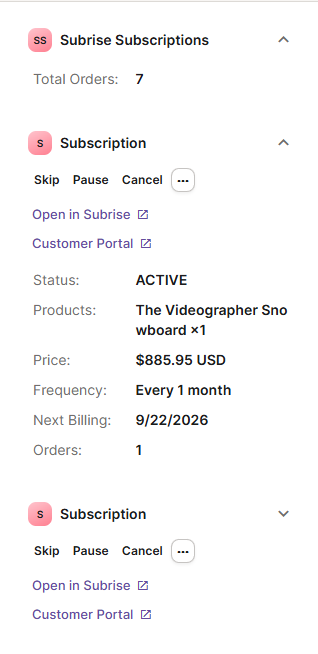
- Total Orders across all the customer's subscriptions.
- One Subscription card per subscription, newest first, up to 10: Status, Products, Price, Frequency, Next Billing and Orders.
- Open in Subrise opens the subscription in your Subrise admin.
- Customer Portal opens the customer's own page for managing the subscription.
The data is read live from Subrise each time the ticket is created, updated or gets a new message.
Manage subscriptions from a ticket
| Button | What it does |
|---|---|
| Skip | Skips the next order. The next billing date moves one billing cycle later. |
| Pause | Pauses the subscription until it is resumed. |
| Cancel | Cancels the subscription. The agent must enter a Cancellation reason. |
| Resume (under ...) | Resumes a paused subscription. |
| Send Portal Link (under ...) | Emails the customer a secure link to manage their own subscription. |
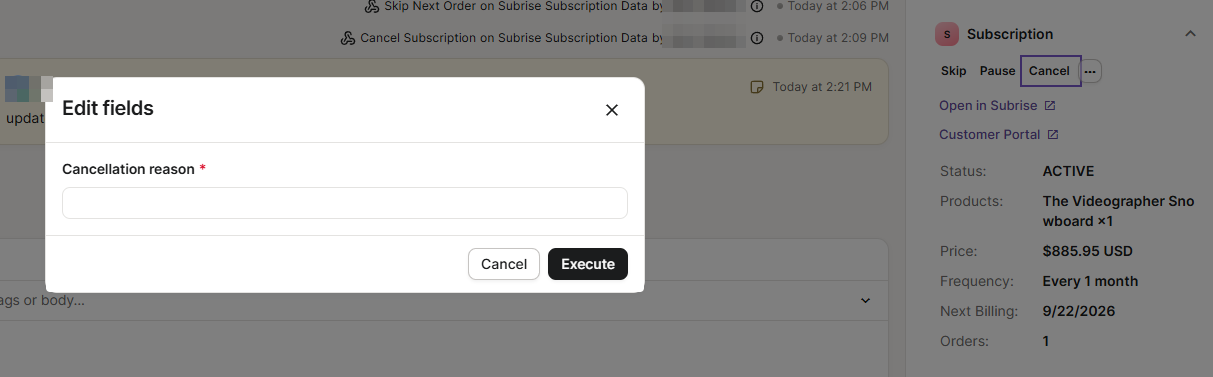
Every action:
- Shows its result on the ticket, so the conversation records what was done and when.
- Appears in the subscription's activity log in Subrise as done by Gorgias, with the agent.
- Is safe to click twice. If the subscription is already in that state, for example already cancelled, the agent sees a message such as "Already cancelled" and nothing changes.
Skip also checks the date. If the next billing date changed since the panel loaded, Subrise skips nothing and says so.
Keep the panel current
The panel refreshes when there is activity on the ticket. To refresh it now, for example after you changed the subscription in Subrise, add an internal note to the ticket.
When Subrise improves the panel, the Gorgias card in Settings > Integrations shows Update available. Click Update widget to install the new version in Gorgias. You don't need to reconnect.
Troubleshooting
- The panel doesn't appear. The ticket's customer email must match the email on a subscription in your store. Add an internal note or reload the ticket.
- A button says "Already ..." The subscription changed after the panel loaded, perhaps through another agent or the customer's portal. Add an internal note to see the current state.
- The card shows Disconnected. Click Disconnect, then connect again from Settings > Integrations.
- Nothing opens when you click Connect. Allow pop-ups for the Shopify admin in your browser.